
• Home
    • 01. DAY BOOK – Čeština
    • 01. DAY BOOK – Dansk
    • 01. DAY BOOK – English
    • 01. DAY BOOK – Español
    • 01. DAY BOOK – Español
    • 01. DAY BOOK – български

ClinicSoftware.com Knowledge Base ClinicSoftware.com Knowledge Base

ClinicSoftware.com Knowledge Base

  • HOW IT WORKS
    • Software Features
    • Marketing Features
    • Online Booking
    • Paperless Features
    • Photo And Draw Features
    • Tracking Features
    • Sell Cycle Features
    • Fully Responsive Features
    • Business Reports Features
    • Automated Features
    • Reminders Features
    • Apps Features
    • Multi Location Features
    • Add-Ons
  • WHO IT’S FOR
  • MARKETING
  • MORE
    • Support
    • Find-Us
    • Migrate To ClinicSoftware
    • How We Provide Training
    • Partner With Us
    • Academy
    • Support Chat
    • Blog
    • Editions
    • ClinicSoftware.com TV
    • GDPR
    • ICD-10 Database
    • PCI-DSS Compliant
    • Cloud Hosting
    • Latest UK Shows
    • UK Press
  • Classic Edition
  • CLOSE / RETURN TO SOFTWARE
Home Knowledge Base 9.3 ADMIN AREA 40. STOCK

40. STOCK

30th January 2017 Posted in: 9.3 ADMIN AREA Hits: 52

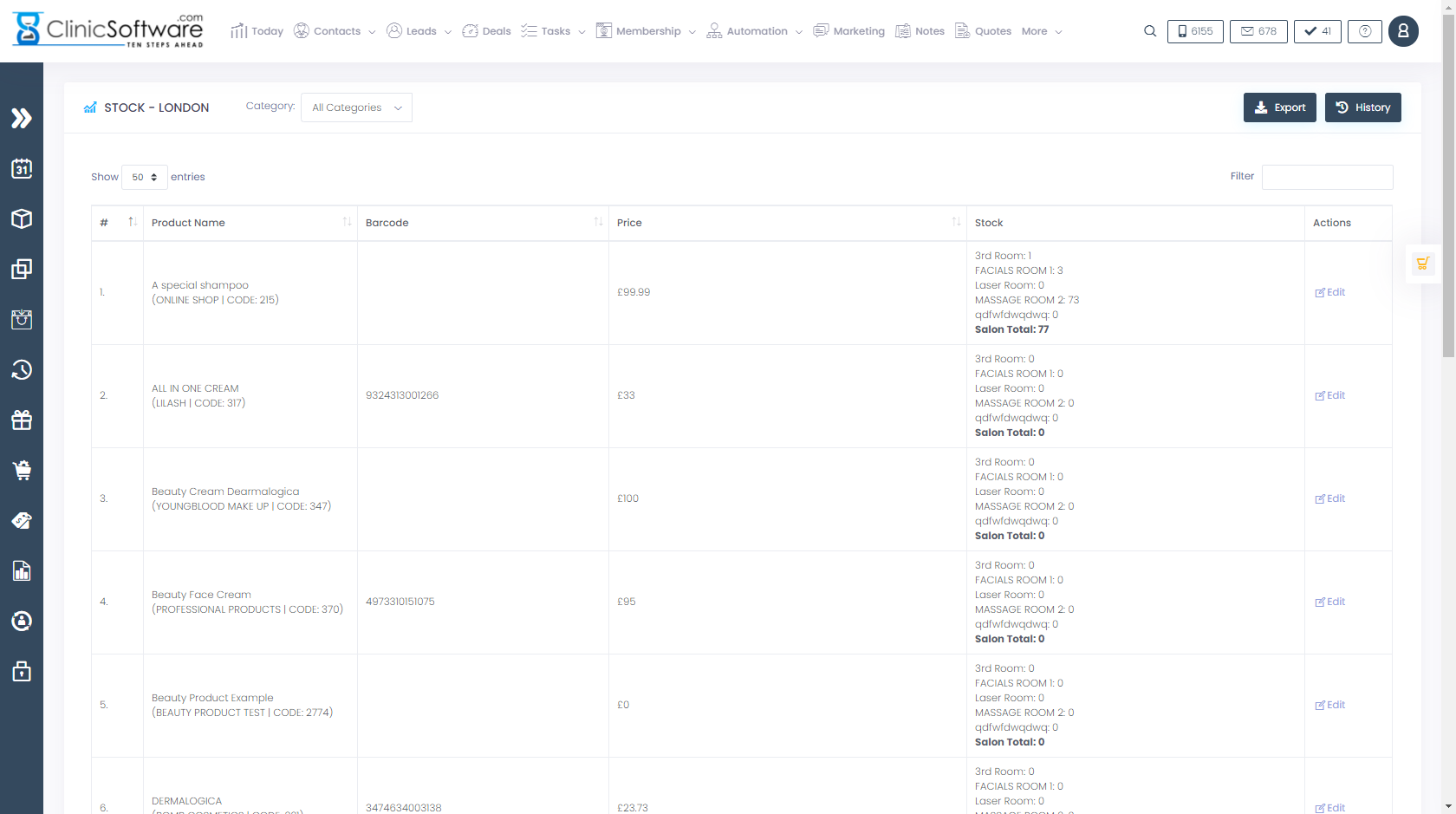
From this page you can view and manually edit the storage room stock values of each product.
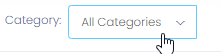
To filter the list by category, select the category from the top section drop box.
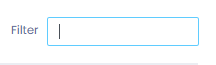
To filter the list/search for a product, use the “Filter List” field from the top section.
To export the stock of the current products in an Excel file, press the Export button.

To access the “Products stock history” report, press the “History” button.

To edit the stock values of a product, press the “Edit” button of the product.

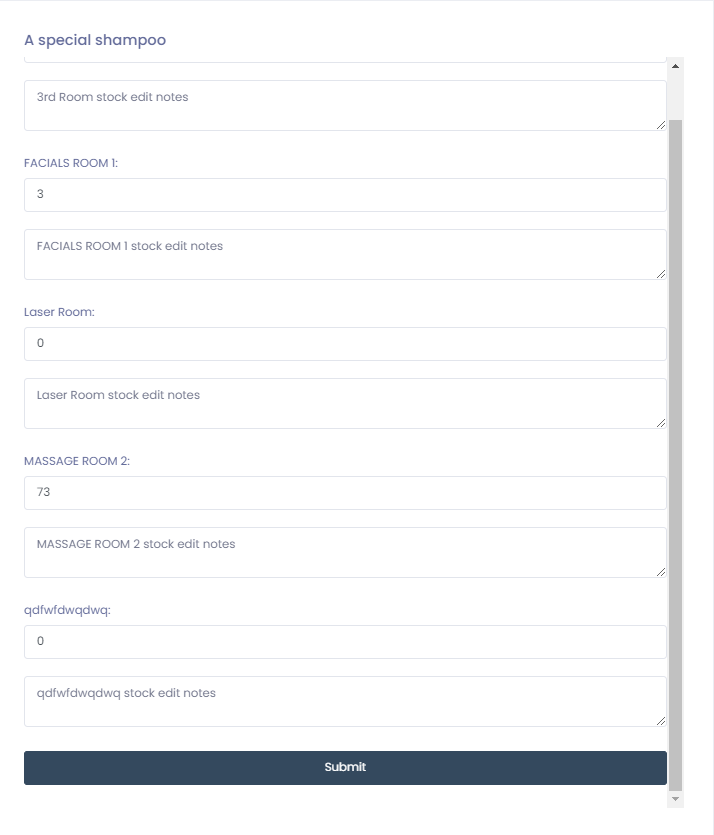
You can specify stock edit notes for each storage room of the product.
Submit the changes by pressing the “Submit” button.
The action will be logged and displayed in the stock history report.


© 2017 ClinicSoftware.com