
From this page, you can manage the resource categories that can be assigned to services and courses to specify the resources that each service or course use.
Resources categories are shared between locations.
The location availability is specified directly on the resource.
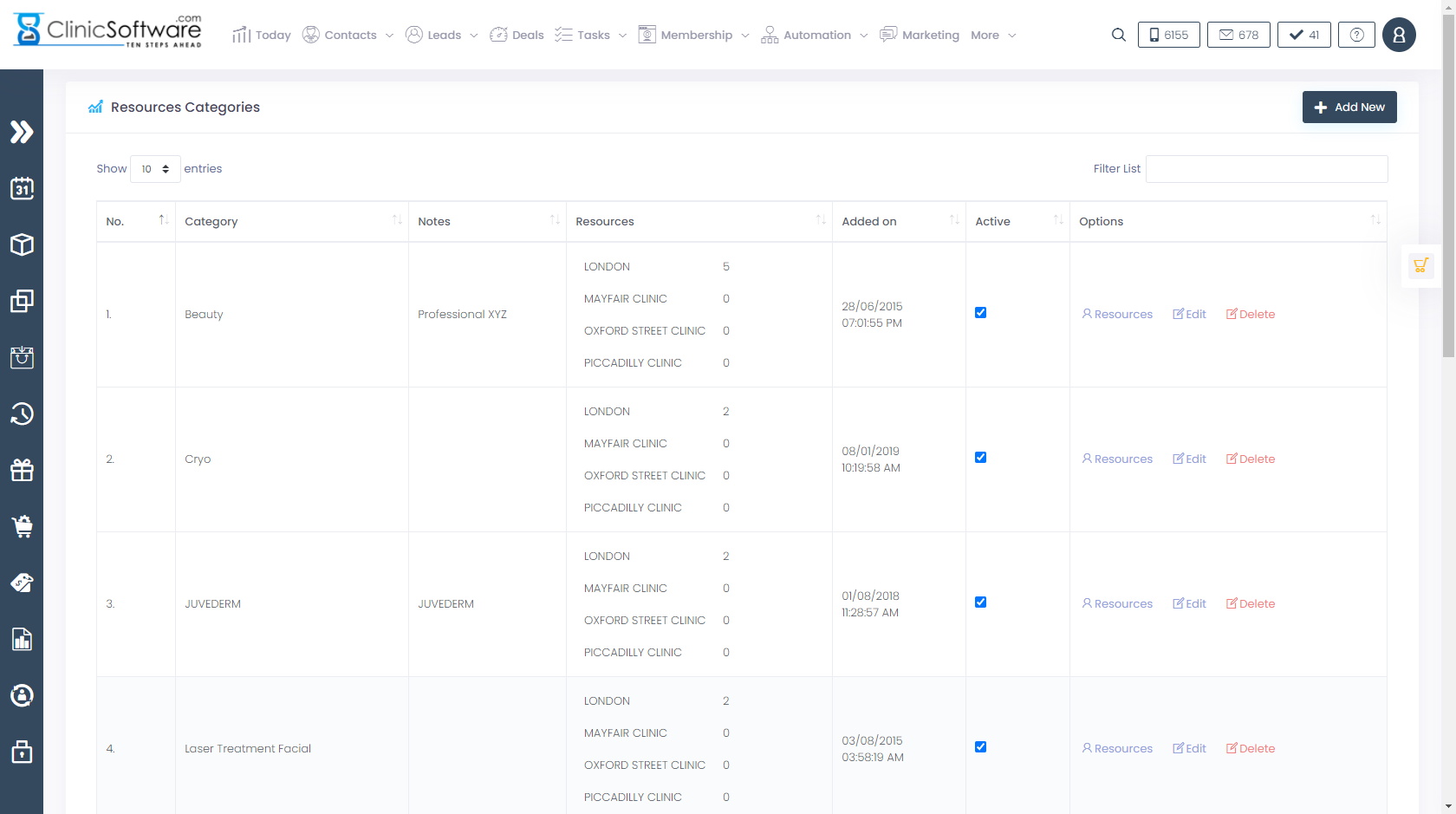
To filter the list/search for a category, use the “Filter List” filed from the top section.
To disable or enable an existing category, tick the “Active” checkbox of the category.

Checked – active (enabled)
Unchecked – inactive (disabled)
To manage the category resources or to edit/delete the category use the options buttons of the category.

To add a category, press the “Add New” button from the top left section.

After the category has been created we can add the resources.
To do this, click on the “Resources” button of the category from the categories list page.

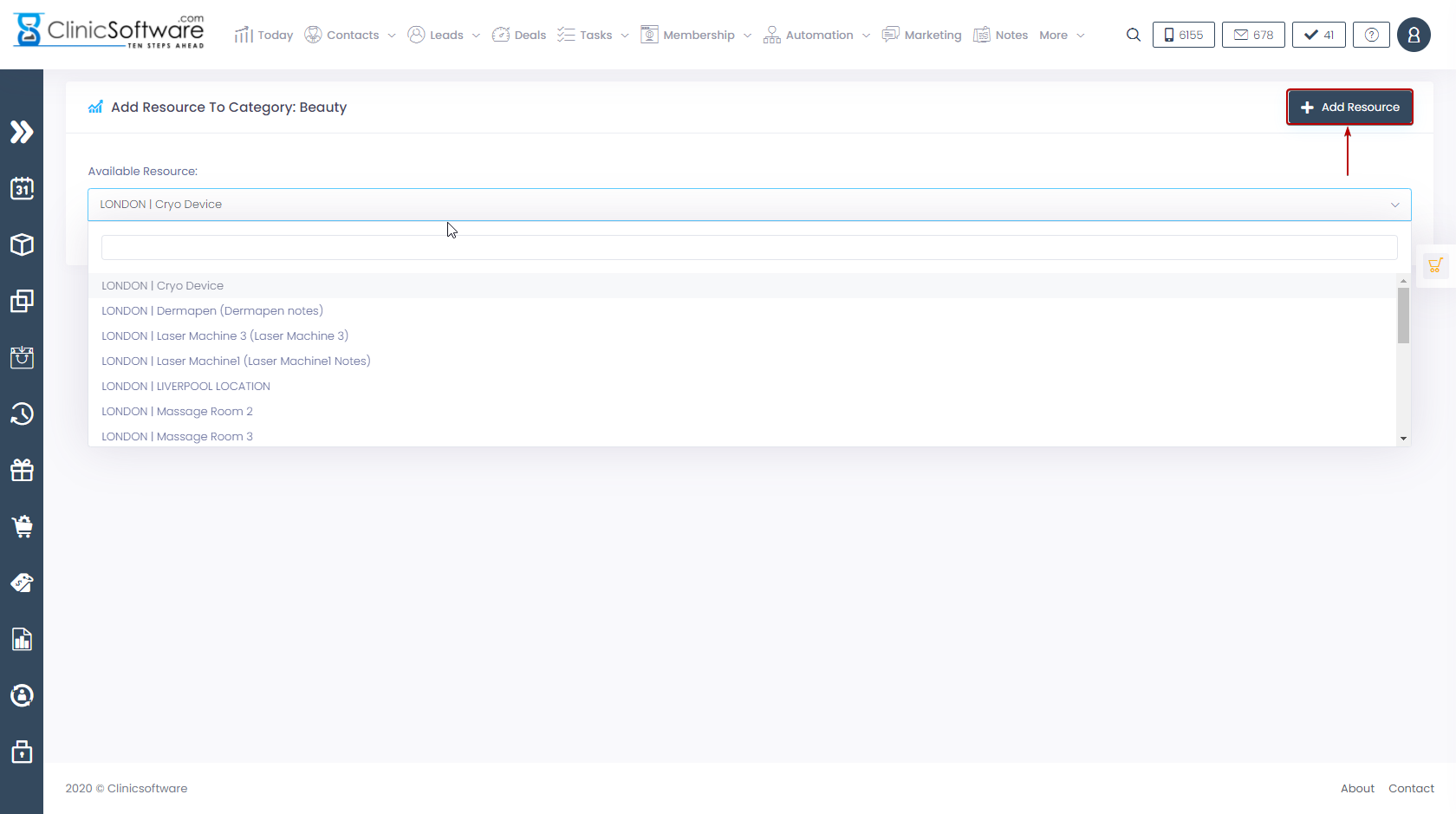
To add a resource to the selected resources category, press the “Add New” button from the top left section.
The system will only display the resources that have not yet been added to the selected category.
Select the resource from the “Available Resource” drop box and then press the “Add Resource” button.
To remove a resource from the selected category, press the “Delete” button of the category resource entry.
