
• Home
    • 01. DAY BOOK – Čeština
    • 01. DAY BOOK – Dansk
    • 01. DAY BOOK – English
    • 01. DAY BOOK – Español
    • 01. DAY BOOK – Español
    • 01. DAY BOOK – български

ClinicSoftware.com Knowledge Base ClinicSoftware.com Knowledge Base

ClinicSoftware.com Knowledge Base

  • HOW IT WORKS
    • Software Features
    • Marketing Features
    • Online Booking
    • Paperless Features
    • Photo And Draw Features
    • Tracking Features
    • Sell Cycle Features
    • Fully Responsive Features
    • Business Reports Features
    • Automated Features
    • Reminders Features
    • Apps Features
    • Multi Location Features
    • Add-Ons
  • WHO IT’S FOR
  • MARKETING
  • MORE
    • Support
    • Find-Us
    • Migrate To ClinicSoftware
    • How We Provide Training
    • Partner With Us
    • Academy
    • Support Chat
    • Blog
    • Editions
    • ClinicSoftware.com TV
    • GDPR
    • ICD-10 Database
    • PCI-DSS Compliant
    • Cloud Hosting
    • Latest UK Shows
    • UK Press
  • Classic Edition
  • CLOSE / RETURN TO SOFTWARE
Home Knowledge Base 4. DAY BOOK 17. RESIZING THE APPOINTMENT

17. RESIZING THE APPOINTMENT

27th January 2017 Posted in: 4. DAY BOOK Hits: 46

You can resize the appointment in 3 ways:

  • By clicking and dragging on the bottom of the appointment box form the Day Book
  • From the “Appointment Details” window by changing the “End Time” drop box
  • From the “Appointment Details” using the “Move” option

Please see “RESCHEDULING THE APPOINTMENT” section of the User Guide for details on using the “Move” option.

Resizing the appointment using click and drag

On the bottom of each appointment box is rectangle area displayed with a slightly darker colour from which you can click and drag to modify the appointment duration:
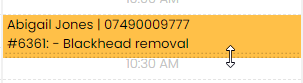
Left click and move the mouse up (less time) or down (more time) while holding the mouse button:
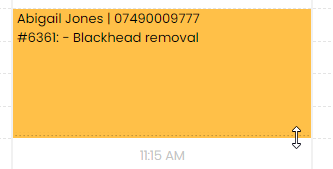
Release the left mouse button when the desired time has been reached:
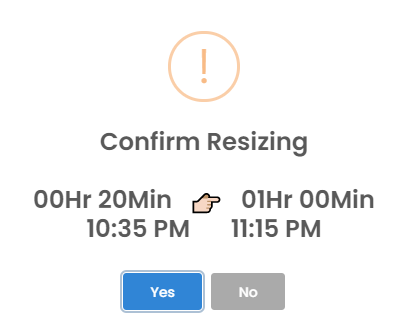
Resizing the appointment using the “End Time” option

From the “Appointment Details”, click on the “End Time” field and select the required value:
Confirm the resizing by pressing the yellow “Update” button.


© 2017 ClinicSoftware.com