
• Home
    • 01. DAY BOOK – Čeština
    • 01. DAY BOOK – Dansk
    • 01. DAY BOOK – English
    • 01. DAY BOOK – Español
    • 01. DAY BOOK – Español
    • 01. DAY BOOK – български

ClinicSoftware.com Knowledge Base ClinicSoftware.com Knowledge Base

ClinicSoftware.com Knowledge Base

  • HOW IT WORKS
    • Software Features
    • Marketing Features
    • Online Booking
    • Paperless Features
    • Photo And Draw Features
    • Tracking Features
    • Sell Cycle Features
    • Fully Responsive Features
    • Business Reports Features
    • Automated Features
    • Reminders Features
    • Apps Features
    • Multi Location Features
    • Add-Ons
  • WHO IT’S FOR
  • MARKETING
  • MORE
    • Support
    • Find-Us
    • Migrate To ClinicSoftware
    • How We Provide Training
    • Partner With Us
    • Academy
    • Support Chat
    • Blog
    • Editions
    • ClinicSoftware.com TV
    • GDPR
    • ICD-10 Database
    • PCI-DSS Compliant
    • Cloud Hosting
    • Latest UK Shows
    • UK Press
  • Classic Edition
  • CLOSE / RETURN TO SOFTWARE
Home Knowledge Base 9.3 ADMIN AREA 24. REFUND MODE

24. REFUND MODE

30th January 2017 Posted in: 9.3 ADMIN AREA Hits: 64

From this page, you can refund client receipts.
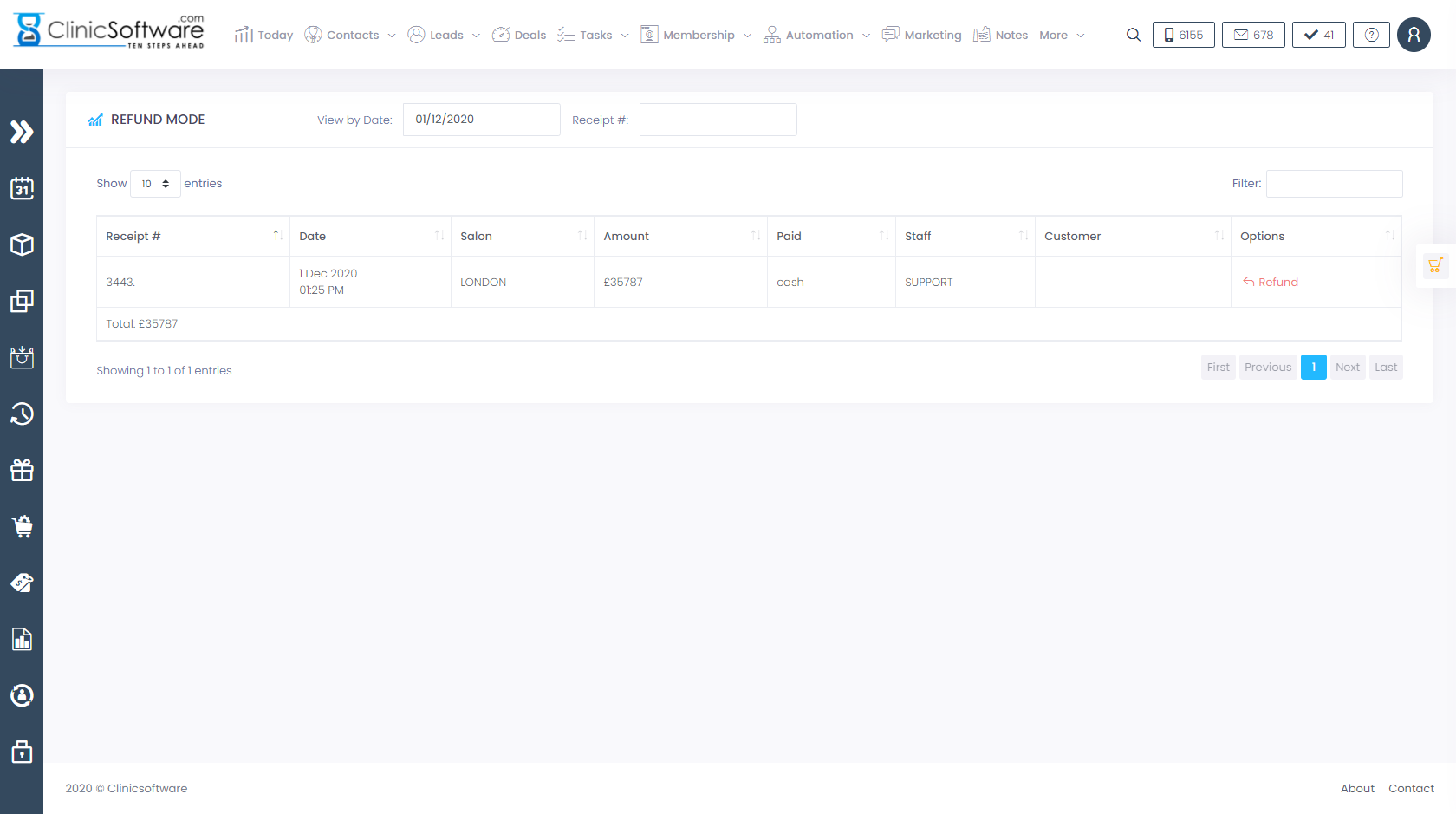
By default, today’s receipts are listed.
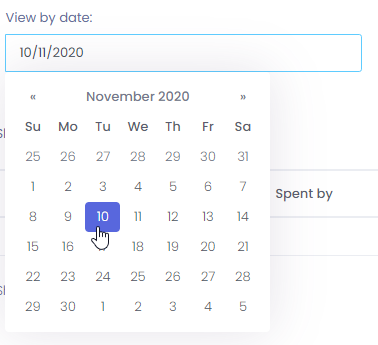
To view the receipt from another date, click on the “View by date” field and select the date.
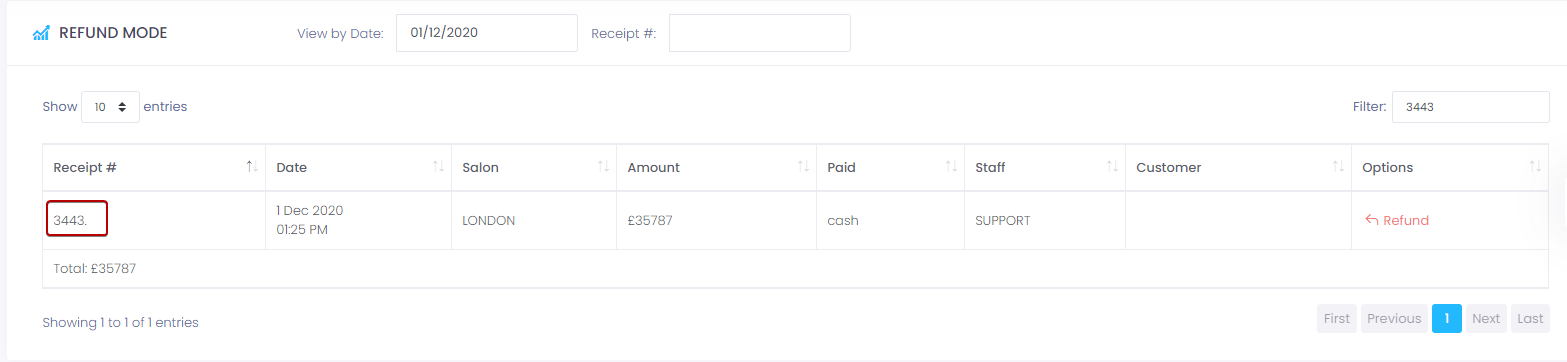
To find the receipt by the receipt number, enter the value in the “Receipt #” field and then press the “Go” button next to it.

To view the items list of a receipt, click on the receipt number from the “Rec. #” column.
To access the client profile, click on the client name from the “Customer” column.

To refund the receipt, press the “Refund” button.


Receipts that contain services with a reference to the appointment from which they were added can also cancel the appointment when the receipt is refunded.

The system will ask you if you wish to also cancel the related appointment for the services on the receipt.


After you press the “Submit” button, the listing will update and the receipt will be displayed as “Refunded”.

The system will also issue and print an additional refund type receipt with a reference to the receipt that was refunded.


Notice receipt #725 with the option’s value of “Ref. Rec. #723”.

To reprint the refund type receipt, click on “Reprint Bill” of the refund receipt.


© 2017 ClinicSoftware.com