
• Home
    • 01. DAY BOOK – Čeština
    • 01. DAY BOOK – Dansk
    • 01. DAY BOOK – English
    • 01. DAY BOOK – Español
    • 01. DAY BOOK – Español
    • 01. DAY BOOK – български

ClinicSoftware.com Knowledge Base ClinicSoftware.com Knowledge Base

ClinicSoftware.com Knowledge Base

  • HOW IT WORKS
    • Software Features
    • Marketing Features
    • Online Booking
    • Paperless Features
    • Photo And Draw Features
    • Tracking Features
    • Sell Cycle Features
    • Fully Responsive Features
    • Business Reports Features
    • Automated Features
    • Reminders Features
    • Apps Features
    • Multi Location Features
    • Add-Ons
  • WHO IT’S FOR
  • MARKETING
  • MORE
    • Support
    • Find-Us
    • Migrate To ClinicSoftware
    • How We Provide Training
    • Partner With Us
    • Academy
    • Support Chat
    • Blog
    • Editions
    • ClinicSoftware.com TV
    • GDPR
    • ICD-10 Database
    • PCI-DSS Compliant
    • Cloud Hosting
    • Latest UK Shows
    • UK Press
  • Classic Edition
  • CLOSE / RETURN TO SOFTWARE
Home Knowledge Base 6. REJUVENATION 03. MODIFYING AN EXISTING REJUVENATION PROCEDURE

03. MODIFYING AN EXISTING REJUVENATION PROCEDURE

27th January 2017 Posted in: 6. REJUVENATION Hits: 43

To modify an existing rejuvenation procedure, select the procedure from the client procedures list, make the necessary changes and then press the “Save” button.

To select a procedure, tap on the preview image or press the “View” button of the procedure.
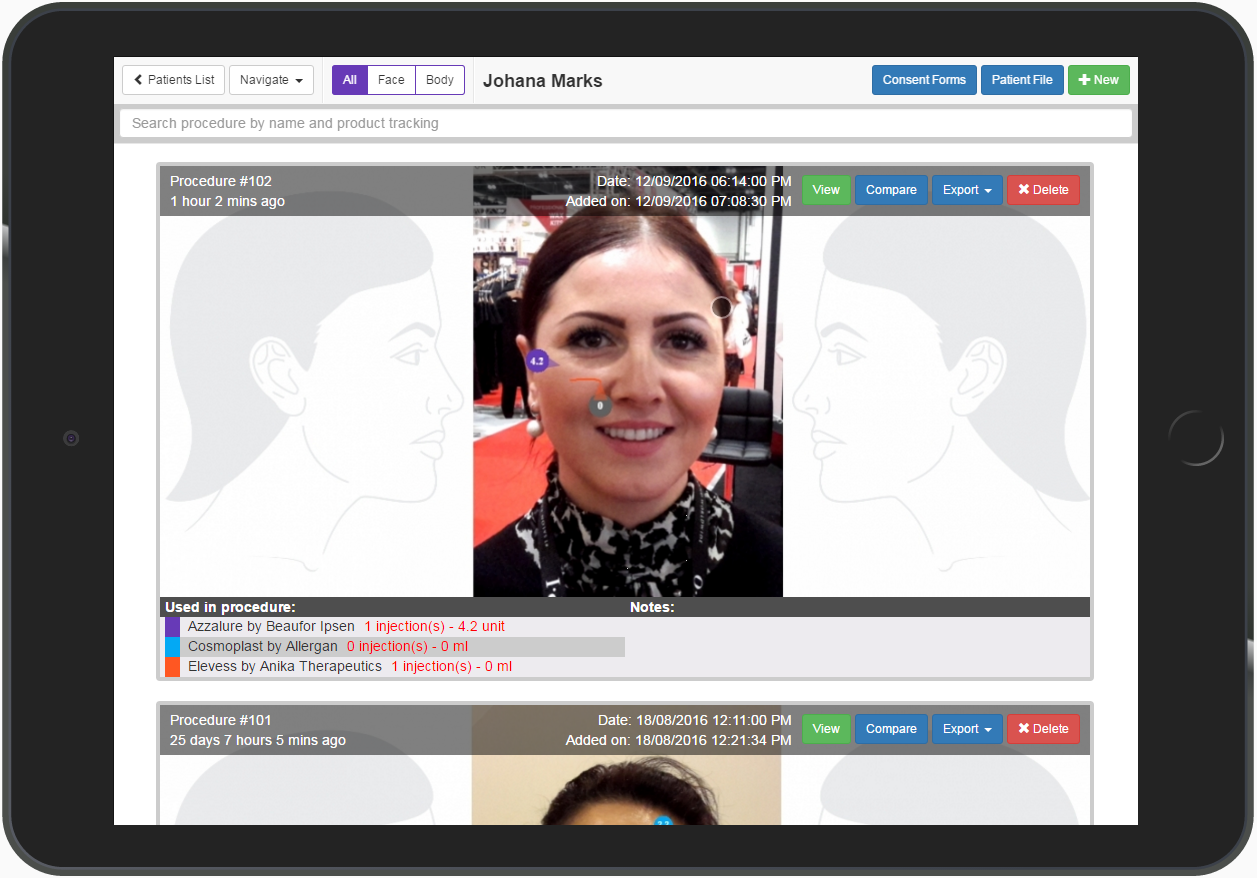


The same mechanism on how to change the pictures and add / remove injections as for the creation of a new rejuvenation procedure applies.

To delete a procedure, press the delete button of the procedure.


© 2017 ClinicSoftware.com