
• Home
    • 01. DAY BOOK – Čeština
    • 01. DAY BOOK – Dansk
    • 01. DAY BOOK – English
    • 01. DAY BOOK – Español
    • 01. DAY BOOK – Español
    • 01. DAY BOOK – български

ClinicSoftware.com Knowledge Base ClinicSoftware.com Knowledge Base

ClinicSoftware.com Knowledge Base

  • HOW IT WORKS
    • Software Features
    • Marketing Features
    • Online Booking
    • Paperless Features
    • Photo And Draw Features
    • Tracking Features
    • Sell Cycle Features
    • Fully Responsive Features
    • Business Reports Features
    • Automated Features
    • Reminders Features
    • Apps Features
    • Multi Location Features
    • Add-Ons
  • WHO IT’S FOR
  • MARKETING
  • MORE
    • Support
    • Find-Us
    • Migrate To ClinicSoftware
    • How We Provide Training
    • Partner With Us
    • Academy
    • Support Chat
    • Blog
    • Editions
    • ClinicSoftware.com TV
    • GDPR
    • ICD-10 Database
    • PCI-DSS Compliant
    • Cloud Hosting
    • Latest UK Shows
    • UK Press
  • Classic Edition
  • CLOSE / RETURN TO SOFTWARE
Home Knowledge Base 5. COURSES / SESSIONS 04. INSTALLMENTS

04. INSTALLMENTS

26th January 2017 Posted in: 5. COURSES / SESSIONS Hits: 74


From this page, you view and take payments for the client’s course instalments.

The Instalments page is divided into 3 sections:

  • “Instalments” which will list all course directories and the courses instalments that are not fully paid.
  • “History” which will list all of the courses instalments payment date.
  • “Notes” in which you can place payment related notes
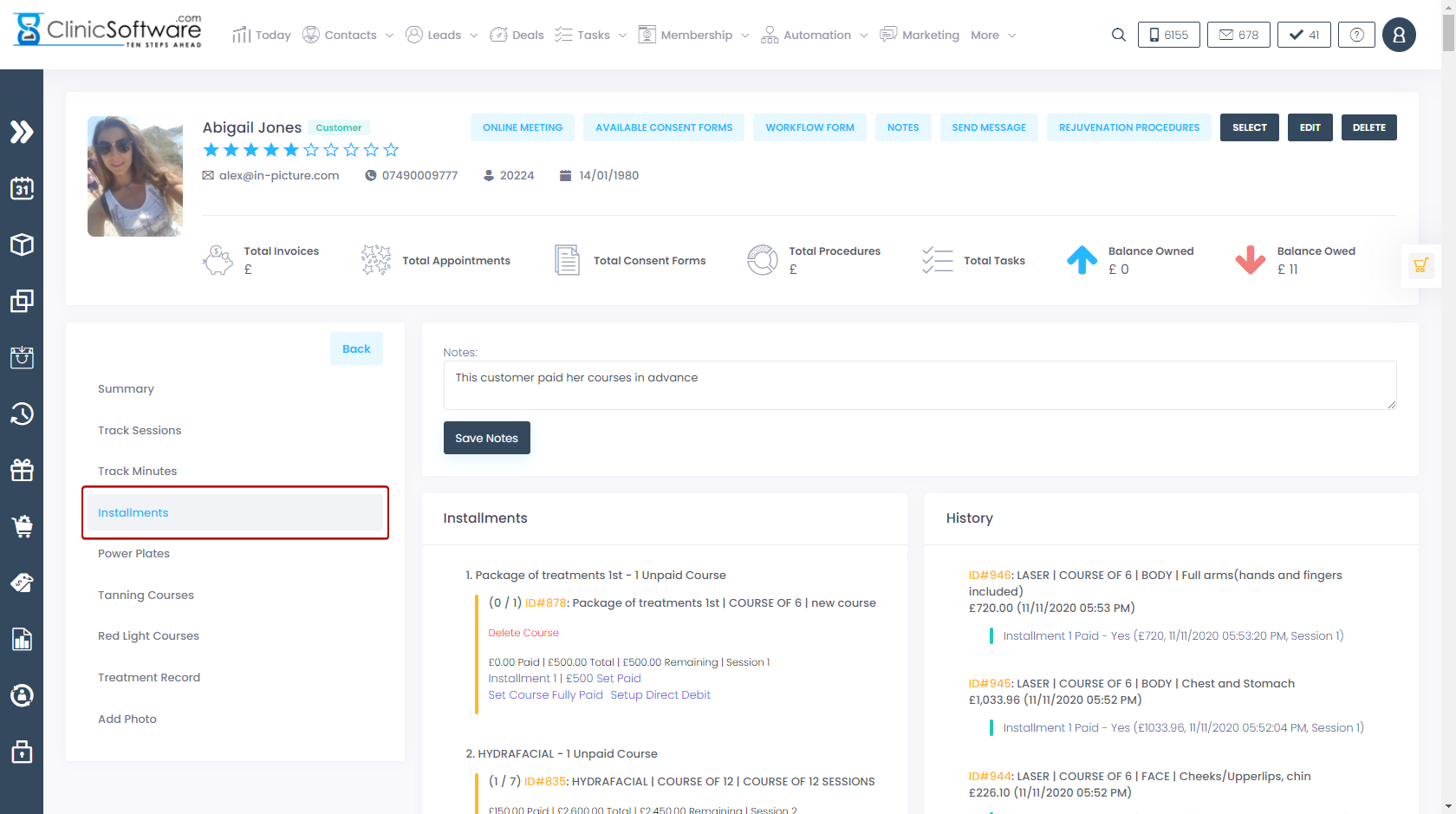
To take payment of a course instalment search for the course in the “Instalments” page and press “SET PAID” for the instalment that you wish to take payment for.

After you press “SET PAID” the instalment will be added to the cart.
From there, press CASH/CARD in order to complete the payment.

You can take payment for all of the remaining instalments of a course by pressing “SET COURSE FULLY PAID”.
This will add all of the remaining instalments to the cart; Press CASH/CARD in order to complete the payment.

To save payment notes, fill in the Notes field and then scroll down and press the “Save notes” button.

© 2017 ClinicSoftware.com