
• Home
    • 01. DAY BOOK – Čeština
    • 01. DAY BOOK – Dansk
    • 01. DAY BOOK – English
    • 01. DAY BOOK – Español
    • 01. DAY BOOK – Español
    • 01. DAY BOOK – български

ClinicSoftware.com Knowledge Base ClinicSoftware.com Knowledge Base

ClinicSoftware.com Knowledge Base

  • HOW IT WORKS
    • Software Features
    • Marketing Features
    • Online Booking
    • Paperless Features
    • Photo And Draw Features
    • Tracking Features
    • Sell Cycle Features
    • Fully Responsive Features
    • Business Reports Features
    • Automated Features
    • Reminders Features
    • Apps Features
    • Multi Location Features
    • Add-Ons
  • WHO IT’S FOR
  • MARKETING
  • MORE
    • Support
    • Find-Us
    • Migrate To ClinicSoftware
    • How We Provide Training
    • Partner With Us
    • Academy
    • Support Chat
    • Blog
    • Editions
    • ClinicSoftware.com TV
    • GDPR
    • ICD-10 Database
    • PCI-DSS Compliant
    • Cloud Hosting
    • Latest UK Shows
    • UK Press
  • Classic Edition
  • CLOSE / RETURN TO SOFTWARE
Home Knowledge Base 9.2.1 CLIENTS FILES

FILES

25th March 2020 Posted in: 9.2.1 CLIENTS Hits: 10

From this page, you can upload/download, delete and organize your client files in folders.
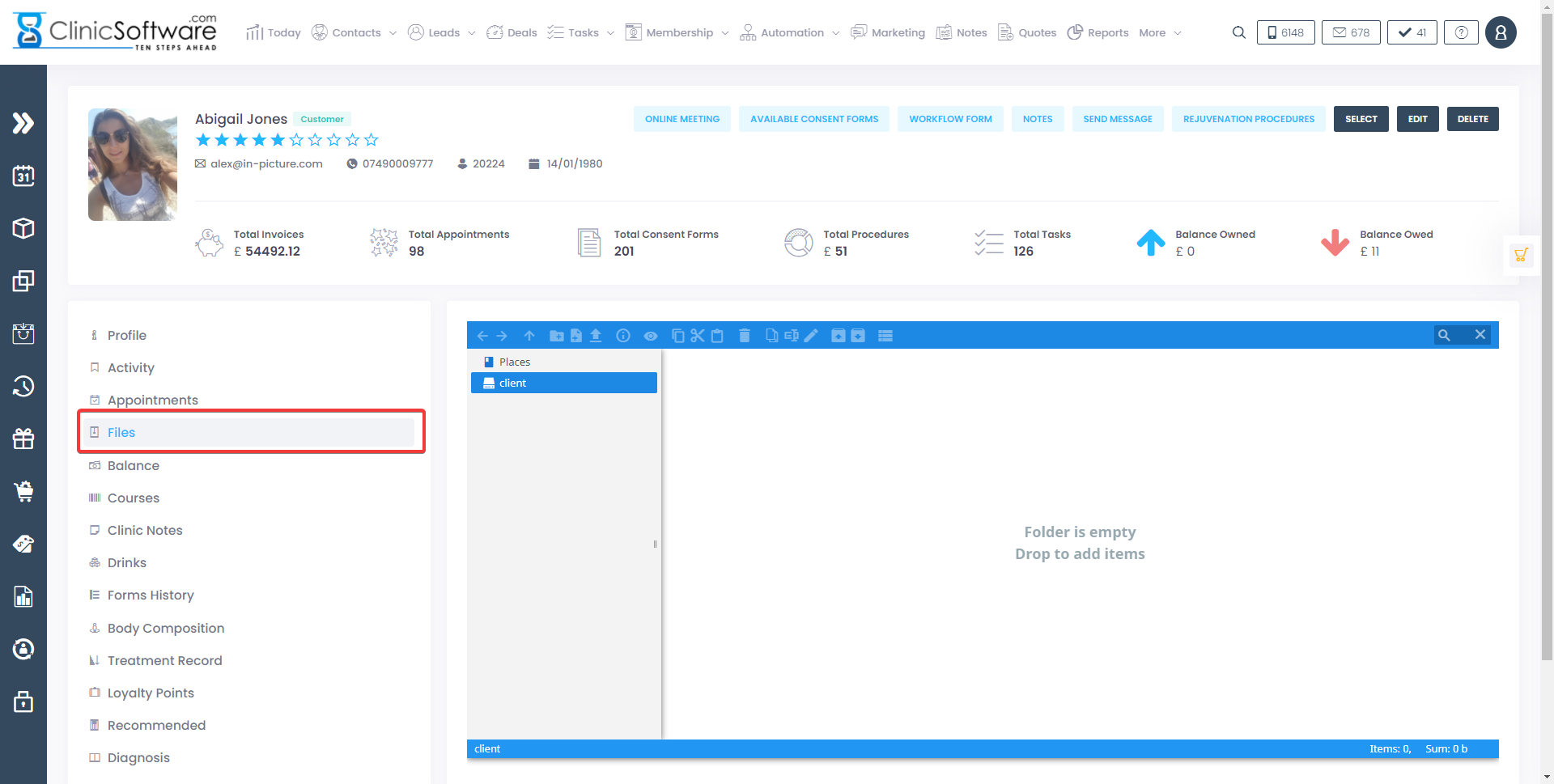
 

To download a file right click on the file and choose download.
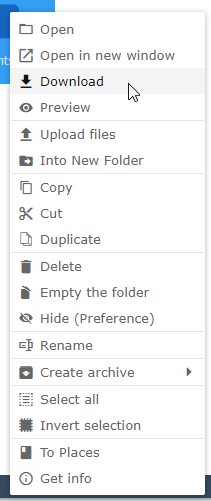
To upload a new file, right click on the empty space and then choose “Upload files”.
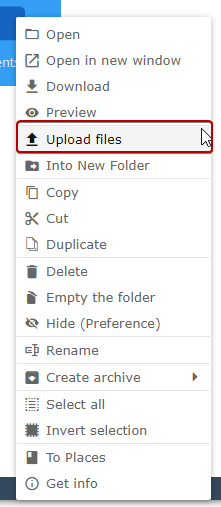
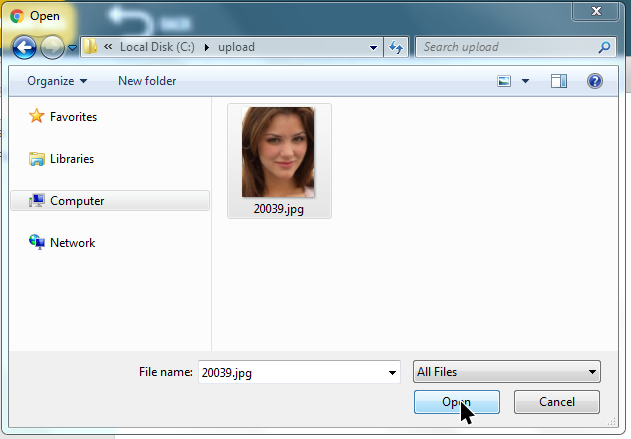
You can then drag your files directly inside the “Upload files” area or press the “Select files to upload” button to open the file browser of your computer.
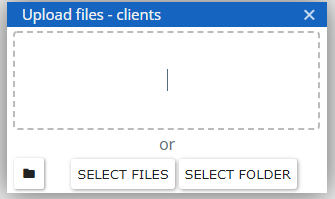
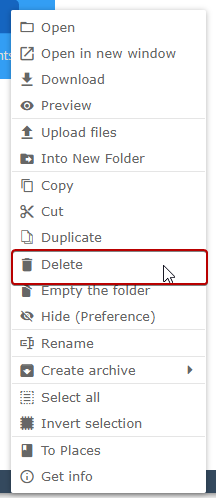
To delete a file, right click on the file and choose “Delete”.
To create a new folder right click on the empty space and choose “New folder” then type in the folder name and press the Enter key.

You can organize your files by dragging them in the folders displayed in the left column or uploading them directly in the folders by first entering the folder by double clicking on it.


© 2017 ClinicSoftware.com