
• Home
    • 01. DAY BOOK – Čeština
    • 01. DAY BOOK – Dansk
    • 01. DAY BOOK – English
    • 01. DAY BOOK – Español
    • 01. DAY BOOK – Español
    • 01. DAY BOOK – български

ClinicSoftware.com Knowledge Base ClinicSoftware.com Knowledge Base

ClinicSoftware.com Knowledge Base

  • HOW IT WORKS
    • Software Features
    • Marketing Features
    • Online Booking
    • Paperless Features
    • Photo And Draw Features
    • Tracking Features
    • Sell Cycle Features
    • Fully Responsive Features
    • Business Reports Features
    • Automated Features
    • Reminders Features
    • Apps Features
    • Multi Location Features
    • Add-Ons
  • WHO IT’S FOR
  • MARKETING
  • MORE
    • Support
    • Find-Us
    • Migrate To ClinicSoftware
    • How We Provide Training
    • Partner With Us
    • Academy
    • Support Chat
    • Blog
    • Editions
    • ClinicSoftware.com TV
    • GDPR
    • ICD-10 Database
    • PCI-DSS Compliant
    • Cloud Hosting
    • Latest UK Shows
    • UK Press
  • Classic Edition
  • CLOSE / RETURN TO SOFTWARE
Home Knowledge Base 4. DAY BOOK 08. EDITING OR REMOVING BUSY TIME ENTRIES

08. EDITING OR REMOVING BUSY TIME ENTRIES

27th January 2017 Posted in: 4. DAY BOOK Hits: 61

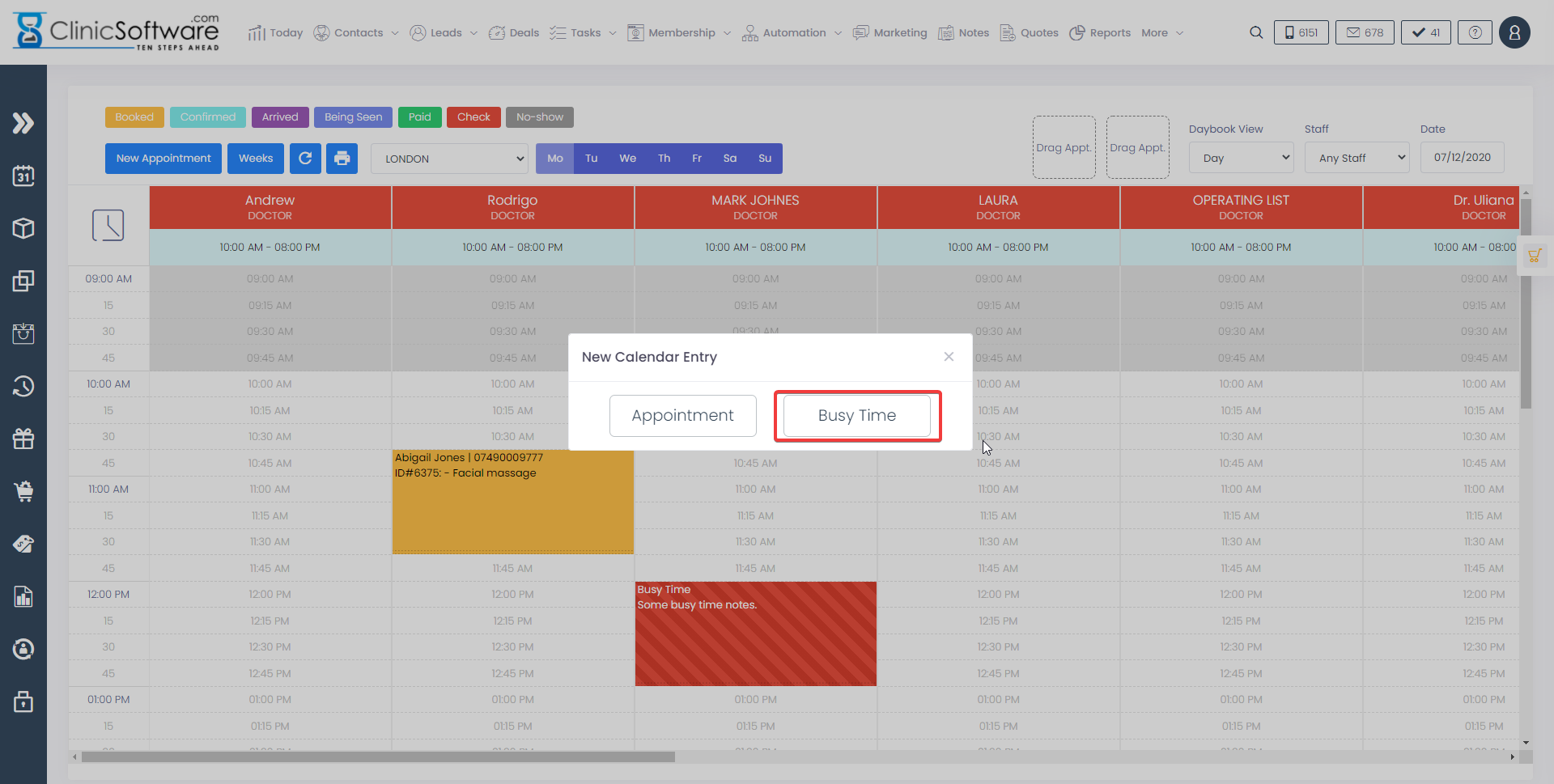
To edit or remove a busy time entry we must first click on it from the Day Book.
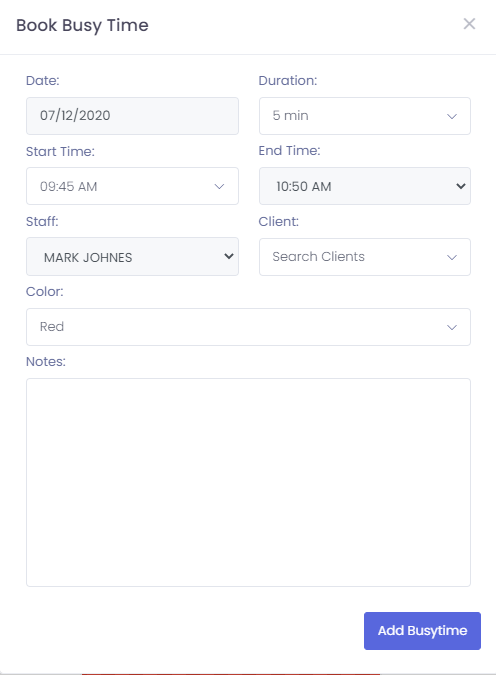
To edit the busy time entry make the necessary changes (date, time, duration, staff or notes) and then press the “UPDATE” button.

To remove (cancel) a busy time entry, press the “CANCEL” button.


© 2017 ClinicSoftware.com